•Version 10.2.0.9 BLUE - Release Date 0/22/2025
•Version 10.2.0.9 RED - Release Date 02/10/2025
•Version 10.2.0.9 TEAL - Release Date 03/03/2025
•Version 10.2.0.9 PURPLE - Release Date 03/17/2025
•Version 10.2.0.9 NAVY - Release Date 03/24/2025
•Version 10.2.0.9 MAROON - Release Date 04/15/2025
•Version 10.2.0.9 AQUA - Release Date 06/03/2025
•Version 10.2.0.9 GREEN - Release Date 06/25/2025
•Version 10.2.0.9 SILVER - Release Date 07/30/2025
•Version 10.2.0.9 OLIVE - Release Date 10/06/2025
•Version 10.2.1.0 - Release Date 12/23/2025
2026 UPDATE FEES RELEASE
•Initial Software Release for 2026
| This update is the first software release for 2026 and will require that the 2026 Update Fees are current. AccuBuild Version 10.2.0.9 is the last update for the 2025 Update Fees renewal. Please contact AccuBuild Support for more information on update renewals. |
AB ANALYTICS
•CORRECTION - Library Script Updates 10.2.0.9 AQUA
| The Library Script for the AB Analytics Cube Library was updated to correct issues with the “BillingTotals” record types and “paid cost” record types. These issues have been corrected and a new folder will be created under the AccuBuild Program folder called ABCube_Updates which will contain instructions for the AccuBuild Support Technicians to update existing installations of ABAnalytics (ABAnalyticsUpdate_ReadMe_06042025.txt). |
AB TIMECLOCK 400
•ENHANCEMENT - New AB TimeClock 400 Settings Lunch Time Tracking - 10.2.1.0 Year End Update
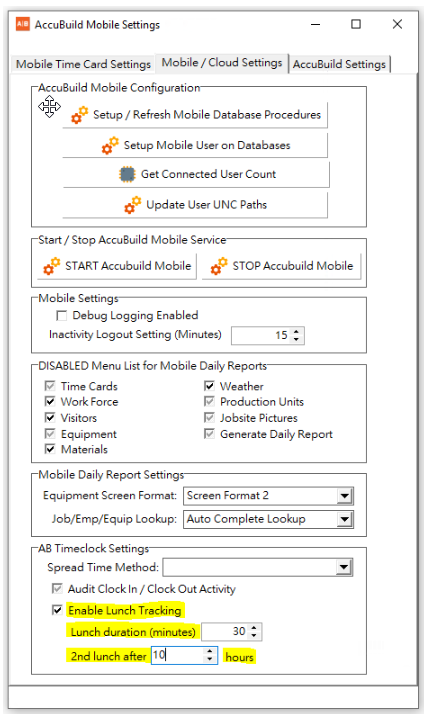
| The AccuBuild Mobile Settings Screen has been updated with new controls that are used by the AB TimeClock 400 App for handling lunch time tracking. Three new controls have been added on the Mobile / Cloud Settings Tab in the AB Timeclock Settings box located at the bottom of the screen: |
•Enable Lunch Tracking: - Use this checkbox setting to enable the lunch tracking feature in the AB TimeClock 400 App.
•Lunch duration (minutes): This setting is used to hold the number of minutes that are designated for the lunch break. Valid entries are zero (0) to sixty (60) minutes.
•2nd lunch after hours: This setting is used to hold the number of effective working hours in a shift beforea an employee is entitled to a second lunch break. Valid entries are zero (0) to twenty-four (24) hours.
ACCUIMPORTER
•CORRECTION - Accuimporter Equipment Journal - 10.2.0.9 GREEN
| The Equipment Journal import process was causing a floating point error when the equipment numbers contained letters. |
CONSTUCTIONPAYROLL.COM
•CORRECTION - Check Posting Process 10.2.0.9 PURPLE
| The check posting processes for the integration between ConstructionPayroll.com and AccuBuild were updated to correct the handling of invalid net pay check amounts. |
•ENHANCEMENT - Integration User 10.2.0.9 MAROON
| The User Maintenance Screen was updated to prevent the Editing or Deleting of the CPINTEGRATIONUSER user name which is a reserved user for the ConstructionPayroll.COM Integration. |
GENERAL LEDGER
•ENHANCEMENT - Bank Reconciliation Screen Confirmation Messages 10.2.0.9 MAROON
The Bank Reconciliation Screen has been updated with new confirmation messages for the Clear All and Reset All buttons so that the user has a chance to cancel the option.
•CORRECTION - General Journal Reversing Entires - Units Issue 10.2.0.9 GREEN
| The General Journal Reversing Entries screen was NOT reversing any units that were entered along with the reversing entries. This issue has been corrected in this release. |
•CORRECTION - General Journal Report 10.2.0.9 SILVER
| The General Journal Report (Crystal Traditional Version) was not displaying the two decimal places for the Units Column. The report has been corrected in this release. (GLREP05.RPT) |
INVENTORY
•ENHANCEMENT - Inventory Transfers for Tool Tracking 10.2.0.9 NAVY
| A new Advanced Setting has been added that will allow the inventory transfer screen to be used to track tools that are moved to and from the jobsites. |
o54 - AddEmployeeNumberTrackingforIVXfers - This feature will allow an employee number to be included in the transaction description of the inventory transfer entries - representing the employee number that is delivering the materials (tools).
Setup Requirements - In addition to enabling the new advanced setting, there are some additional requirements for using this feature:
oInventory Master List - Your tools will need to be listed on the Inventory Master list so that they can be referenced in the transfer screen. If you have other types of inventory on the Inventory Master list then you may want to set up a tools category for your tools. The tools will be transferred based on the inventory part number assigned to each tool. If you want to charge the job for the expense of the tool, then you can enter a selling price on the part number.
oJob List - The new Inventory Transfer Report will include the Job Supervisor and the Project Manager for each transaction based on the Job List fields for these roles on the job. This is NOT a requirement to use the new feature, but if you would like to have these fields included in the report, be sure to set them up on the Job List.
oMAR Report Access - This feature will require two new reports to be set up and secured for the users that will be accessing the Inventory Transfer screen and running the Historical Inventory Transfer Reports:
▪IVREP02G.714 - Historical Transfer Report - Job Order - Driver (Employee) - This report is located on the Inventory Reports Tree in the MAR Reports List
▪IVXFRJNL.292 - Inventory Transfer Journal - With Employee - This report is located on the Inventory Forms Tree in the MAR Reports List
Inventory Transfer Screen - When this feature is enabled, the inventory transfer screen will be modified to allow for an employee number (Driver) field to be included with each entry and the employee number will be added to the transaction description in order to keep track of which employee has transferred the inventory part (tool):
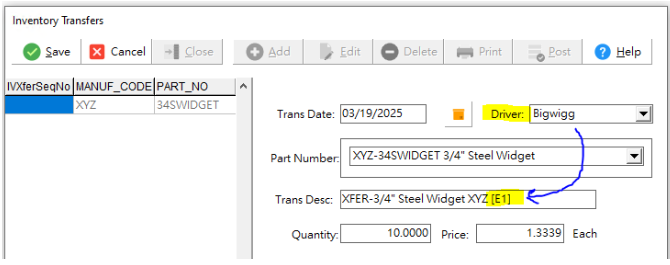
The employee number will be identified in brackets as follows: [E000000] where 000000 represents the employee number up to 6 digits and the employee name will be included in both of the new MAR Reports.
Print Button - Whenever you print out the batch of entries, be sure to select the Print MAR Form Option so that the new MAR Report format is used to preview your entries.
Both the Batch Report and the new Historical Transfers Report will include all of the additional fields for the Job Supervisor, Project Manager, and Employee (Driver).
Important Note: The inventory transfer screen allows for equipment numbers to be included in the transaction entries as a reference for the transfer. For example, company trucks that are used to deliver tools (inventory parts) to the job could be included in the entry provided they are set up on the Equipment List. However, when the Inventory Transfers are set up for tracking tool inventory, the equipment transactions will NOT include any expense amounts in order to prevent these entries from being associated with equipment maintenance expenses.
If you have other non-tool inventory items that you need to charge as equipment expenses, you can use the Stock Request / Stock Fulfillment Process in the Orders System which includes a field for the equipment number.
JOB COST
•ENHANCEMENT - Auto Partial retention Invoice Option 10.2.0.9 TEAL
| A new Automatic Billing Option has been added to the Contract Billings Screen entitled Enable Partial Retention Billings for this Job. This option allows you to bill for prior retention withheld amounts before the job is completed. With this option, you are able to select a previous invoice on a job and bill for the retention held to date through that invoice. This is useful for projects where the owner or general contractor allows for periodic retention billings during the course of construction on a project. The following information outlines how to set up a job for partial retention invoicing and how the new retention withholding method differs from the normal retention withholding process: |
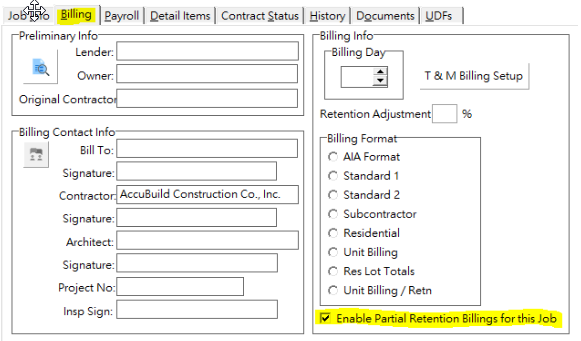
Job Setup: Before you can use this feature on a contract billing, you must enable the Partial Retention Billings option for the job. A new checkbox option has been added to the Billing Tab on the Job Center (Job List) Screen entitled Enable Partial Retention Billings for this Job. This option MUST be checked before you will be able to do a Partial Retention Invoice:
Retention Withholding Method: The retention withholding method is different from the normal retention withholding process in order to deal with the partial retention invoicing. Jobs that are set up for partial retention invoicing will only calculate retention on the Current Gross Invoice amount of each contract billing. This is different from the normal retention withholding process where the retention is calculated on the Gross Invoice Amount To Date less any previous retention withheld amounts. The normal retention method will always true up the retention amount on every invoice based on the amount billed to date.
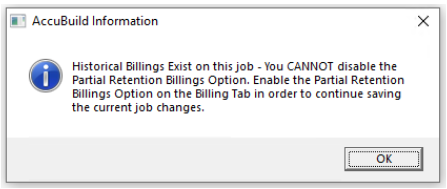
Important Note: Because of this retention withholding method, you should NEVER disable (uncheck) the Partial Retention Billings Option once you have generated one or more invoices on the job. If you try to disable the option after invoices (contract billings) have been generated on the job, the system will stop you from disabling the option and display the message as shown below:
If this situation should ever arise, you should be able to continue billing on the project but the retention calculations will continue to use the partial retention method that only computes retention on the Current Gross Invoice amount (refer to Retention Withholding Method above).
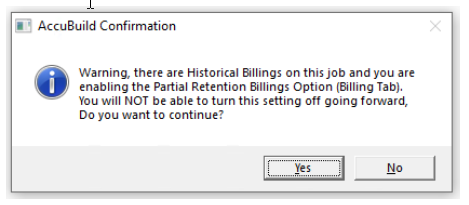
If you try to enable the Partial Retention Billings Option on a job where you have already created one or more invoices (contract billings), you will be warned that the setting will NOT be allowed to be changed back going forward. If you want to continue with the new setting then click the Yes button, otherwise, click the No button and then disable (uncheck) the Partial Retention Billings Option:
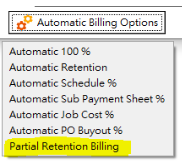
Partial Retention Billing Process: The partial retention invoice process can be used whenever there is at least one or more regular progress billings on the job. This option is accessed by clicking on Automatic Billing Options button of the Contract Billings Screen as shown and following the steps below:
1.The system will first check to make sure the job has been set up for Partial Retention Invoices. If the job has NOT been set up yet, the following message will be displayed:

2.A list of historical invoices will be displayed and you can select the invoice from the list that you want to bill the retention on. Select the invoice by clicking on it. Use the Cancel Button to cancel the option:
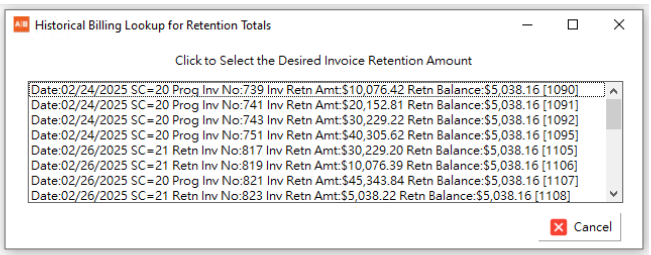
3.Once an invoice is selected, the retention invoice will be created automatically for the full amount of retention withheld to date for the selected invoice.
a.If the remaining retention balance on the project is not enough to cover the retention on the selected invoice, the selection will be rejected with the following message and you can try selecting another invoice or cancel the process:

b.If you select a retention invoice which is designated by the source code of 21 (SC=21) the selection will be rejected with the following message and you can try selecting another invoice or cancel the process:

Once the retention invoice has been created, you can print and post as normal.
All of the other billing options are always available to be used for these jobs when you are not generating a partial retention invoice, and you may generate multiple partial retention invoices on the same project.
•ENHANCEMENT - Custom Contact Labels for Job Roles on Joblist 10.2.0.9 PURPLE
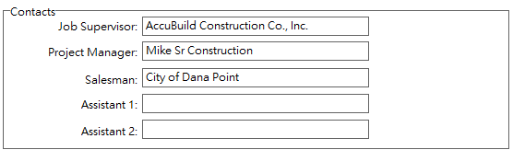
| A new Advanced Setting has been added that can be used to change the label captions (job role titles) for the 5 Contacts on the Job Info tab of the Job Center Screen (Job List). |
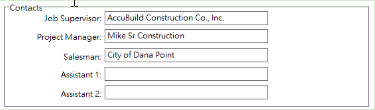
o53 - EnableCustomJobRoleLabelsOnJobList - Used to relabel the contacts (1-5) for job roles on Job List. Use the Setting Value for the new label(s) on separate lines: Example: 4=Estimator
Note: This advanced setting MUST be set up for each company in the AccuBuild System.
Each Label is designated with a number with the default descriptions as shown:
1=Job Supervisor
2=Project Manager
3=Salesman
4=Assistant 1
5=Assistant 2
Enter 1 or more label changes on separate lines in the Setting Value as shown in the above example where Labels 3, 4, & 5 have been changed as shown:

IMPORTANT: Make sure there are no spaces between the label number and the equal sign (=). If spaces are encountered, the label will NOT be changed.
MY ACCUBUILD REPORTS
•CORRECTION - MAR Future Year WIP Reporting - 10.2.0.9 TEAL
A correction was made to the Library Reporting Script for the Future Year series of WIP Report on Class 545 MAR Reports.
•ENHANCEMENT - MAR Mail Merge Process [AICHD-9316] - 10.2.0.9 MAROON
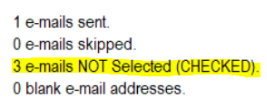
The automatic mail / merge process for MAR Reports that are sent to employees and vendors has been updated with new tracking features to include a list of the contacts that are NOT selected on the email list. Any email addresses that are NOT Selected (CHECKED) to receive an email, will be logged in the email tracking log.
•CORRECTION - MAR Mail Merge Process [AICHD-9316] - 10.2.0.9 AQUA
The logging files that are created for the automatic mail / merge process on MAR Reports have been updated to create a new file name each time the Send Button is clicked. Prior to this update, the existing log file would be overwritten if the user clicked the Send Button more than once before closing the screen.
•ENHANCEMENT - MAR Job Cost Summary Reports - 10.2.0.9 MAROON
Three new MAR Job Cost Reports have been added to the MAR Report Library with a new Report Class of 521. These reports are the Summary Versions of the existing Class 506 reports where all of the detail data queries and drill down options have been removed in order to speed up the report processing time:
oJCREP02D.521 - Job Cost Capsheet - Job / Phase / Account Totals No DD
oJCREP02F.521 - Budget Revision Capsheet Report / Account Totals No DD
oJCREP2DA.521 - Job Cost Capsheet - Daily Labor / Equipment Drill Down No DD
•ENHANCEMENT - 10.2.1.0 Year End Update - 10.2.0.9 OLIVE
A new general ledger report has been added to the MAR Report Library for handling consolidated trial balance reporting on multiple companies. If you have multiple sets of companies running in AccuBuild, this report will allow you to include all of your companies in a single trial balance report with subtotals by account groups for each company along with summary subtotals for all companies in each group.
This report will require some minor setup by the AccuBuild Support Team in order to define which companies to include in the report. Please contact AccuBuild Support if you are interested in having this report set up.
GLREP02A.668 - Trial Balance By Date Range - Consolidated
Technical Notes: For implementation of this report, a copy of the report must be made and the report class setting must be set for custom script to be used with the report. The custom script is for class 668 and the first sequence line in the script is used to build the list of company IDs that are to be included in the consolidated report. Be sure to only include active live company IDs in the report and avoid any duplicate companies such as year end companies, practice companies, etc.
Historical Transactions Note: The 668 report class creates a large GL Detail file entitled MAR_Consolidated_GLDETAIL_Original which contains ALL of the GL detail transactions for each company for EVERY year. This file can grow quite large and so the file is automatically removed from disk once the report has been created. If you need to review this file for audit purposes, you can comment out the clean up code in the last line of the custom copy of class 668.
•ENHANCEMENT - California - Certified Payroll XML Export - 10.2.0.9 OLIVE
The XML Export feature for the California Department of Industrial Relations (CA DIR) has been updated to change the amounts on the 9 benefit amounts under the deductionsContribPay section to represent the hourly rate of each amount instead of the actual dollar amount. Although this is not documented on the CA DIR website, it has been confirmed verbally to our support staff via conversations with other California clients. These rates are calculated using the total amount of each benefit divided by the total hours worked on the project. Be sure to use the MAR Report entitled Certified Payroll Reports - XML Format 1 to produce the XML File:
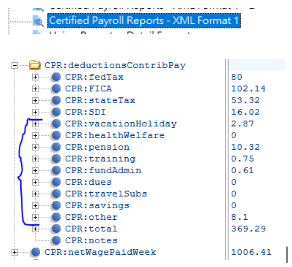
Important Note: Only the XML export file will contain the benefit rates, the preview report (printed report) will still report the benefit dollar amount. As always, if your company requires special formatting for these reports, please contact our support department to discuss a tailored solution that might be able to meet your specific needs.
•CORRECTION - California - Certified Payroll Reports - 10.2.0.9 OLIVE
The Certified Payroll Reports in the MAR Reports were updated to correct an issue where the Project Location (Jobsite Address) is blank for the reports where there are no workers on the job job for the week being reported: No payroll for this reporting period.
All of the following MAR Library have been updated to correct this issue:
PRREP06A.618 - Certified Payroll Reports - Format 1
PRREP06B.619 - Certified Payroll Reports - Format 2 (Excludes Union = 0)
PRREP06C.615 - Certified Payroll Reports - XML Format 1 - Linked Jobs
PRREP06C.617 - Certified Payroll Reports - XML Format 1
Technical Notes: If you are using a custom version of one of these Certified Payroll Reports and you are having this same issue, you can fix your custom report as follows:
•Select the Modify option to open your custom report and be sure to answer Yes to the Refresh Report Data? prompt so that the new report script is generated.
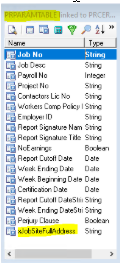
•On the Data Tab of the report designer, select the PRPARAMTABLE datapipe and add the new field to the report field list called xJobSiteFullAddress. This will give you access to the new field inside your custom report:
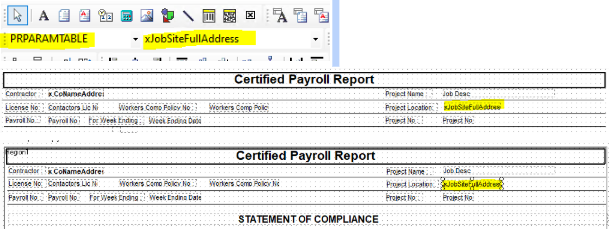
•On the Design Tab of the report designer, locate the two areas on the SubReport bottom tab where the Project Location is listed - one at the top of the report and another on the STATEMENT OF COMPLIANCE Section: In both places, set the datapipe name to PRPARAMTABLE and the field name to xJobSiteFullAddress.
•Save the report changes and then run a test for a week where there are jobs with no payroll reported for the week and the jobsite address will no longer be blank unless it has NOT been set up on the job yet.
•ENHANCEMENT - New MAR Report for Federal Exemption on Overtime Pay 10.2.1.0
A new report has been added to the MAR Report Library under the Payroll Reports section titled 'Federal Report of Exempt Overtime Pay'. (Refer to this topic for more details.)
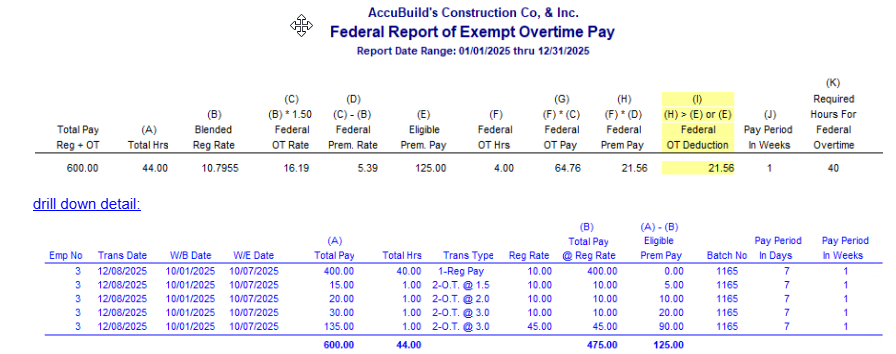
This report can be used to determine the amount of Federal Overtime Pay that is eligible for deduction under the One Big Beautiful Bill passed by the Trump Administration this year. The report will compute the actual amount of the overtime pay that can be deducted for each employee based on the following Federal Overtime Rules:
•Only the hours in excess of 40 hours per week are eligible for the overtime deduction.
•Only the premium pay portion calculated at time and a half is eligible for the overtime deduction.
•The Federal Overtime Rate is based on a blended regular rate computed at time and a half. This is due to the fact that construction industry payroll rates can vary for different work tasks, union rules, and federal and state project rules for prevailing wage requirements.
| Blended Reg Rate = Total Pay @ Reg Rate / Total Hours |
Column (I) - Federal OT Deduction This column (highlighted in yellow) represents the amount of Exempt Overtime Pay that will be included on the employee’s W2 that is generated from Aatrix. The Aatrix Software allows for these amounts to be edited before finalizing the W2 process in case you need to make any adjustments:
PAYROLL
•ENHANCEMENT - Payroll Tax Tables for 2025
•Alabama - 10.2.0.9 AQUA
The Alabama Overtime Exemption for State Withholding Tax will expire on June 30, 2025. The AccuBuild System will no longer exempt any overtime wages for tax calculations that are performed on or after July 1, 2025.
Important Note: The system date of the computer (today's date) will be used each time tax calculations are performed. If taxes are calculated on June 30th 2025 or earlier, the overtime exemption will be calculated. The calculations are NOT based on the check date or the week ending date.
•Arkansas - 10.2.1.0 Year End Update
•California - 10.2.1.0 Year End Update
•Colorado - 10.2.1.0 Year End Update
•Federal Withholding Tax Tables - 10.2.1.0 Year End Update
•Georgia - 10.2.0.9 GREEN
•Hawawii - 10.2.1.0 Year End Update
•Idaho - 10.2.0.9 AQUA
•Illinois - 10.2.0.9 BLUE
•Indiana - 10.2.1.0 Year End Update
•Iowa - 10.2.1.0 Year End Update
•Kentucky - 10.2.1.0 Year End Update
•Louisiana - 10.2.0.9 BLUE
•Maine - 10.2.1.0 Year End Update
•Maryland - 10.2.0.9 RED'; 10.2.0.9 SILVER
•Massachusetts - 10.2.0.9 BLUE
•Mississippi - 10.2.0.9 BLUE
•Missouri - 10.2.1.0 Year End Update
•Montana - 10.2.1.0 Year End Update
•Nebraska - 10.2.1.0 Year End Update
•New Mexico - 10.2.1.0 Year End Update
•New York - Yonkers City Tax - 10.2.1.0 Year End Update
•North Dakota - 10.2.0.9 BLUE
•Ohio - New tax rates effective 10-01-2025 10.2.0.9 OLIVE
•Oklahoma - 10.2.1.0 Year End Update
•Oregon - 10.2.0.9 BLUE
•Rhode Island - 10.2.1.0 Year End Update
•South Carolina - 10.2.1.0 Year End Update
•Utah - 10.2.0.9 AQUA
•Vermont - 10.2.0.9 BLUE
•Virginia - New standard deduction amount effective July 1, 2025 - 10.2.0.9 GREEN
•ENHANCEMENT - New Mexico Workers Comp Deduction for July 2025 - 10.2.0.9 GREEN
•The employee portion of the Workers Compensation fee has been increased from $2.00 to $2.25 effective July 1, 2025 as a result of Senate Bill 535.
NOTE: This deduction is taken once per quarter and is applicable to all employees working the last day of the quarter.
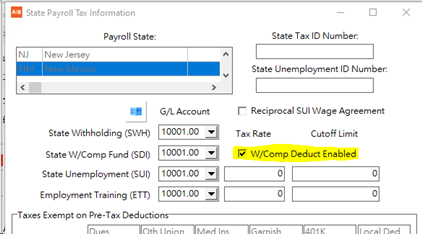
•AccuBuild can automatically create these deductions for you but you must click on the W/Comp Deduct Enabled option (located on the State Payroll Tax Information Screen) prior to beginning the time card entries that should include this deduction.
•You must also turn this option off before you enter time cards for the next pay period.
•CORRECTION - Payroll Tax Calculation for Multi-State Paychecks 10.2.0.9 SILVER
The process for validating the timecard entries with the related payroll check records has been updated to make sure there are timecard pay transactions for every employee AND state code combination in order to make sure the pro-rate process works during the payroll posting process. Previously this validation was only being tested at the employee level which could cause issues when dealing with employee paychecks that contain earnings in more than one state.
•ENHANCEMENT - New Paid Leave Tax for Minnesota for 2026 - 10.2.1.0 Year End Update
•Minnesota now has a paid leave tax for 2026. The premium rate for 2026 will be 0.88% which can be split between the employer and the employee. Employers are responsible for 50% of the contributions under the plan, but the Act allows the employer to require their employees to pay up to (but no more than) half of their contributions as per the Minnesota website links below. The Employer Portion of the Paid Leave will be tracked accrued under the ETT tax field in the PRCHECKS Table and the Employee portion will be withheld using the SDI Tax field in the PRCHECKS Table Please refer to the document titled PLA Minnesota for full details on the setup of this tax.
•ENHANCEMENT - New W2 Reporting Changes for 2026 - 10.2.1.0 Year End Update
•The W2 Reporting for 2025 has been updated for some new changes:
oFederal Overtime Pay Exemption Amounts - Beginning in 2025, the Federal Amount of Overtime pay will now be reported on the employee’s W2 statement. These overtime calculations will be handled automatically by the AccuBuild Software based on the new MAR Report entitled Federal Report of Exempt Overtime Pay. There is no employee setup required for these amounts as they are required under federal law. The amount to be reported is highlighted in yellow under column I as shown:
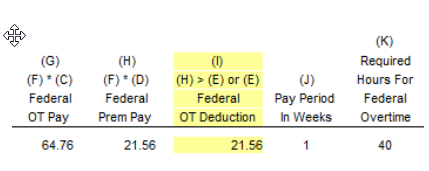
Please refer to the document titled Federal Report of Exempt Overtime Pay for more information.
oContributions to a Trump Account - A new W2 Box 12 Letter TA has been added on the Federal (Fed) tab of the Employee Center Screen for handling contributions to a Trump Account:
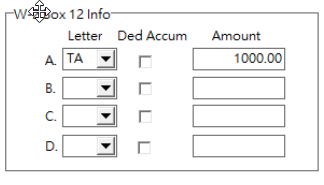
TA - Trump Account Contributions: Employer contributions under a section 128 Trump account contribution program paid to a Trump account of an employee or a dependent of an employee.
Any amounts to be reported under letter TA will need to be set up manually on the employee’s file and should NOT be linked to a deduction accumulator as they are not reflected in any of the payroll check totals.
The new W2 reporting amounts will be processed by Aatrix and displayed in the following boxes as documented below:
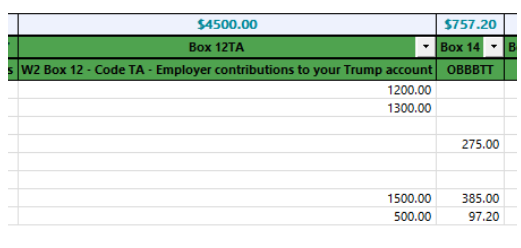
•Federal Overtime Pay Exempt Amounts (Code TT) - for 2025 W2s, these overtime amounts will be reported in Box 14 under the heading Box 14 - OBBBTT (One Big Beautiful Bill - Code TT). Starting with 2026 W2s, these overtime amounts will be reported in Box 12.
•Trump Account Contributions (Code TA) - These amounts will be reported in Box 12 under the heading Box 12TA - W2 Box 12 - Code TA - Employer contributions to your Trump account.
PROJECT MANAGEMENT
•CORRECTION - Project Management COR Log Close Process Version 10.2.0.9 PURPLE
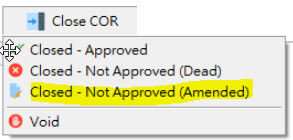
Changes were made on the COR Log Screen for handling CORs that are closed with the status of Closed - Not Approved (Amended). The process to close and create a new amended COR Log entry can cause a delay where the user may decide to click the option again before the system has finished creating the new amended COR entry. This process was changed to ignore any additional mouse clicks so that the process will be completed without issues.
•ENHANCEMENT - Project Management Log - Job Activity Setting Change Version 10.2.0.9 PURPLE
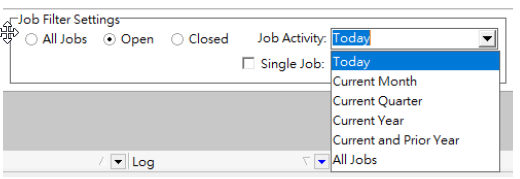
The Job Activity setting on the Project Management log has been updated in order to allow the log to open faster when it is first loaded. The setting for Last 30 Days was changed to Today. This means that the PM Log will be loaded to show only the jobs that have any log entry changes for the current day. This means that far fewer jobs will be loaded when the log is first opened.
•ENHANCEMENT - Project Management Log - Job Activity Setting Change 10.2.0.9 AQUA
The update for version 10.2.0.9 Purple changed the Job Activity setting on the Project Management log from Last 30 Days to Today in order to allow the log to open faster when it is first loaded. In order to make this setting more flexible for each individual user, we have now changed the setting from Today to Last Number of Days and added a Number of Days control.
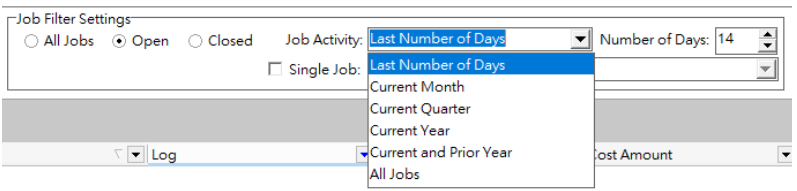
Job Activity: In order to use the Number of Days control, this setting MUST be set to the Last Number of Days option.
Number of Days: This setting allows you to set the activity history to any number of days up to a year (0 to 365 Days). Note: For today's activity only, set the Days to 0 (zero).
User Settings Feature: When you close the Project Management Log, the system will now save the Job Activity settings and use these settings the next time you open the Project Management Log. This allows for each user to have their own settings for the historical activity.
•ENHANCEMENT - Project Management Log - Single Job Filtering Feature - 10.2.0.9 TEAL
A new Advanced Setting has been added that can be used to set the Project Management Log to a single job selection mode in order to improve speed performance for companies with large numbers of projects and users.
| EnableSingleJobOptionOnPMLog - This option is used to view single jobs at a time in the Project Manage Log to enhance data refresh and screen load time performance. |
NOTE: This is a company wide setting and will affect ALL users that access the PM Log.
When this Advanced Setting is enabled, the Project Management log will work with one job at a time by controlling the Job Filter Settings as outlined below:

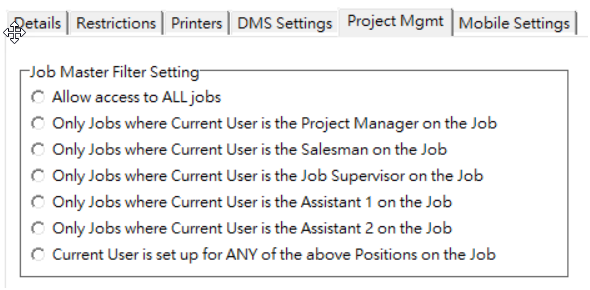
oJob Activity: The Job Activity option will be set to All Jobs and will be disabled. The user will NOT be able to change this option. The All Jobs setting will ensure that the job list in the Single Job: drop down list will contain ALL the jobs that the user has access to based on the user’s settings for the PM Log (Refer to Project Mgmt tab of the User Maintenance Screen for more information on the job filter settings).
oSingle Job: The Single Job option will be checked and disabled so that it cannot be changed. The drop down job list will contain all the jobs that the user has access to based on the Open, Closed, or All Jobs job filter setting.
User Maintenance - Project Mgmt Tab - Job access options:
•ENHANCEMENT - Project Management Log - Delete Log Verification - 10.2.0.9 TEAL
A new test has been added to the Project Management Log when a Daily Report Log is being deleted. A test will now be made to make sure there are no pending entries in the Time Clock App before allowing the log entry to be deleted.
SYSTEM ADMINISTRATOR
•ENHANCEMENT - New Advanced Settings
Use the File | System Administrator | Configuration menu option to access these settings:
•EnableAutoGPSJobUpdateForTimeClockApp - 10.2.0.9 RED
This option is used to enable an automatic process in the AccuBuild Job Center (joblist) whereby the jobsite GPS coordinates are updated automatically when the jobsite address is modified.
NOTE: This feature requires additional software to be installed and configured on your cloud server before it can be operational.
Note: This advanced setting MUST be set up for each company in the AccuBuild System.
•EnableSingleJobOptionOnPMLog - 10.2.0.9 TEAL
This option is used to view single jobs at a time in the Project Manage Log to enhance data refresh and screen load time performance.
•EnableCustomJobRoleLabelsOnJobList - 10.2.0.9 PURPLE
Used to relabel the contacts (1-5) for job roles on Job List. Use the Setting Value for the new label(s) on separate lines: Example: 4=Estimator
•AddEmployeeNumberTrackingforIVXfers - 10.2.0.9 NAVY
This feature will allow an employee number to be included in the transaction description of the inventory transfer entries representing the employee number that is delivering the materials (tools).
•EnableFieldEmployeeLevel2UserSetup - 10.2.0.9 SILVER
This feature allows for non administrative users to set up AccuBuild TimeClock users in the AccuBuild User Maintenance Screen while maintaining full security menu blocking from ALL menu options in the AccuBuild Program. When this advanced setting is enabled, the User Maintenance screen will control the settings for all users that are set to a level 2 security level. In addition, if a user logs into the AccuBuild System under the FIELDEMPLOYEESETUP user name, the User Maintenance screen will be blocked from any security related access settings.
NOTE: Once this feature is enabled, a series of implementation setup steps will be required by the Accubuild Support team for any company that enables this setting. Please refer to this document link for full details on the set up of this option.
•EnableRoundUpForAllOtherAmountsonPRTimecards- 10.2.1.0 Year End Update
This setting is used to force timecard auto generated record amounts and burden amounts to always round up on one half cent (0.005) or more on auto generated pay and deduction timecard amounts and all timecard payroll burden amounts.
This new feature can be used in conjunction with the Advanced Setting titled EnablePayAmountRoundUpForPRTimecards. When both of these settings are enabled, then ALL timecard amounts and burden amounts will follow the round up rule.
•ENHANCEMENT - ConstructionPayroll.com Integration User 10.2.0.9 MAROON
| The System Administrator > User Maintenance Screen was updated to prevent the Editing or Deleting of the CPINTEGRATIONUSER user name which is a reserved user for the ConstructionPayroll.COM Integration. |
•ENHANCEMENT - Month End Close Process Logging Changes 10.2.0.9 SILVER
oThe Month End closeout process has been updated to include the close out steps in the User Activity Log for easier access when reviewing the closeout process. In addition, the Month End closeout text file that is stored in the company directory has been updated to include the hours, minutes, and seconds of the file creation time in the file name. This name change will make sure that log files are never overwritten when the month end process is run multiple times on the same date for the same company:
| Old File Name Format: ME082025.TXT |
| New File Name Format: ME082025_18_38_56.TXT |
oGlobebak Table: The company global settings table (globebak.adt) will now be created each time the month end process is run so that it is included in the month end zip backup. Previously this table was only being created during the backup data and restore data processes. This new change will ensure that each month end backup contains the current company global settings in case the user does NOT perform a manual backup during the month end closeout process.
| If the global settings table cannot be created during the month end process, the month end process will be canceled until the problem is resolved. |
•ENHANCEMENT - Company Configuration Properties Screen Update 10.2.0.9 SILVER
oThe Fiscal Year End date setting has now been set to Read Only mode in order to prevent accidental date changes which causes issues with the accounting totals for Fiscal Year amounts in the General Ledger, Job Cost, and Equipment Cost modules. The Month End Process automatically updates this setting when the process is run for the last month of the Fiscal Year.
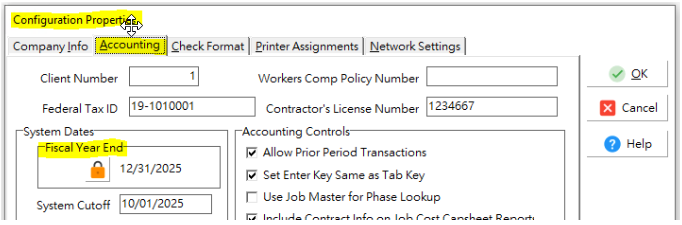
| If you should ever have concerns with the Fiscal Year End date, please contact AccuBuild Support so that a support technician can assist you to make sure any necessary changes are done in accordance with the AccuBuild business rules. |
| NOTE: Any changes to the Fiscal Year End date will now be logged in the user activity log with the original date and the new date settings. |
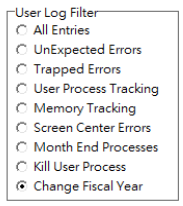
•ENHANCEMENT - User Activity Log - Updated Filter Settings 10.2.0.9 SILVER
oThe User Activity Log Screen has been updated with new filter settings to locate newly introduced process types as noted below:
▪Month End Processes - This filter will show the log entries for the Month End processes that have been performed
▪Kill User Process - This filter will show any user processes that were forcefully terminated in the AccuBuild System.
▪Change Fiscal Year - This filter will show any changes to the Fiscal Year End that were done manually outside of the normal Month End process.